3 - Sharing Your Database
In this section, you'll learn how to share your databases with colleagues and collaborate effectively using MotherDuck's sharing features.
👈 Go back to Part 2: Loading Your Dataset
Creating and sharing your data
Let's create a table with sample data in your playground database, then share it with others. The docs_playground database is automatically created when you connect, so you can start experimenting right away!
First, let's populate your playground database with some currency exchange data:
CREATE TABLE docs_playground.currency_rates AS
SELECT
  'USD' AS currency_code,
  'US Dollar' AS currency_name,
  1.0 AS rate_to_usd,
  '2024-01-15' AS rate_date
UNION ALL
SELECT
  'EUR',
  'Euro',
  0.85,
  '2024-01-15'
UNION ALL
SELECT
  'GBP',
  'British Pound',
  0.75,
  '2024-01-15'
UNION ALL
SELECT
  'JPY',
  'Japanese Yen',
  110.0,
  '2024-01-15';
Sharing your database
With your database and sample data in place, you can share this dataset with others. MotherDuck shares create a point-in-time snapshot of your database that can be accessed by specified users or groups.
When creating a Share, the most important parameters control access scope, visibility, and update behavior. Use ACCESS RESTRICTED with a role grant so access follows the preset-role hierarchy, and VISIBILITY DISCOVERABLE makes the Share appear for users who have access. The update-behavior default is UPDATE AUTOMATIC (the Share reflects database changes automatically). On DuckDB clients 1.5.4 and lower it defaults to UPDATE MANUAL (the Share is a static snapshot until you run UPDATE SHARE).
To share with your whole organization, create a restricted Share and grant READ to the Explorer role. Builder and Admin inherit the grant.
- SQL
- MotherDuck UI
CREATE SHARE IF NOT EXISTS currency_data_share
FROM
  docs_playground (ACCESS RESTRICTED, VISIBILITY DISCOVERABLE);
Then grant the Explorer role READ access:
GRANT READ ON SHARE currency_data_share TO ROLE explorer;
You can also create shares through the MotherDuck UI by clicking the dropdown menu next to your database and selecting the share option. This will open a window to configure your share settings.

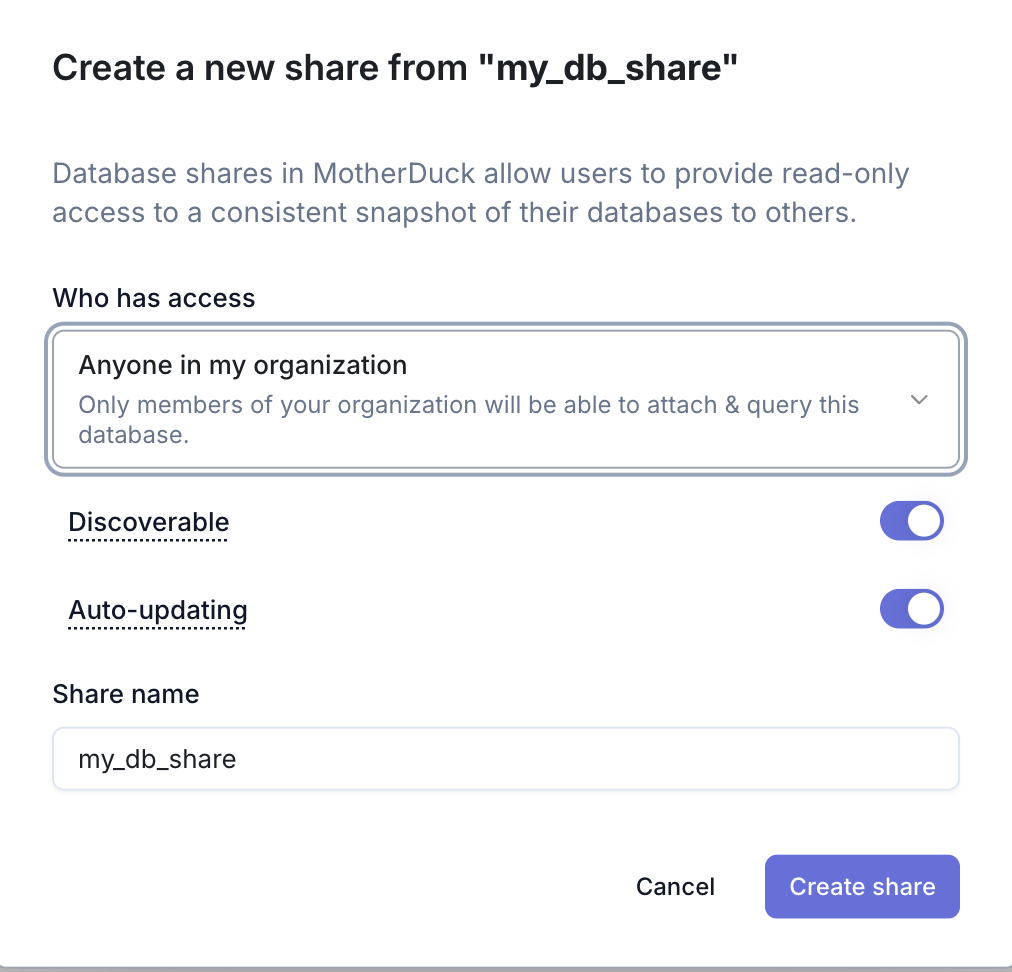
Once you grant the Share to Explorer, Explorer, Builder, and Admin users can view it in the MotherDuck UI under "Shared with me".
Learn more about sharing in MotherDuck.
Understanding share configuration
When creating shares, you can control three key aspects: who can access the data, how users discover the share, and when the data updates. Each parameter has specific options that determine the sharing behavior.
ACCESS - who can access the share
ACCESS ORGANIZATION(default, planned for deprecation): Equivalent to granting READ to the Explorer roleACCESS UNRESTRICTED: All MotherDuck users in the same cloud region as your Organization can access the shareACCESS RESTRICTED: Only the Share owner has initial access; grant additional access to users or roles withGRANT
VISIBILITY - how users discover the share
VISIBILITY DISCOVERABLE(default): The share appears in your organization's "Shared with me" section for easy discoveryVISIBILITY HIDDEN: Share can only be accessed through a direct URL; not listed in any user interface
- Organization and Restricted shares default to
DISCOVERABLE - Unrestricted shares can only be
HIDDEN - Hidden shares can only be used with
ACCESS RESTRICTED
UPDATE - when share data updates
UPDATE AUTOMATIC: Share automatically reflects database changes within ~5 minutesUPDATE MANUAL: Share content only updates when you runUPDATE SHAREcommand
The default is UPDATE AUTOMATIC. On DuckDB clients 1.5.4 and lower the default is UPDATE MANUAL. Specify the mode explicitly for consistent behavior across versions.
Example share configurations
-- Share with every preset role
CREATE SHARE IF NOT EXISTS team_currency_analysis
FROM
  docs_playground (
    ACCESS RESTRICTED,
    VISIBILITY DISCOVERABLE,
    UPDATE MANUAL
);Grant the Share to the Explorer role so every preset role receives access:
GRANT READ ON SHARE team_currency_analysis TO ROLE explorer;
-- Restricted share for selective access
CREATE SHARE IF NOT EXISTS private_analysis
FROM
  docs_playground (
    ACCESS RESTRICTED,
    VISIBILITY HIDDEN,
    UPDATE AUTOMATIC
);Querying shared data
After creating a share, authorized users can access the shared database in two ways: by using the share URL directly or by attaching it as a database alias:
-- Attach a shared database
ATTACH 'md:_share/docs_playground/b556630d-74f1-435c-9459-cfb87d349cb3' AS shared_currency;

-- Query the shared data
SELECT * FROM shared_currency.currency_rates
WHERE rate_to_usd < 1.0
ORDER BY rate_to_usd DESC;
Managing Shares
You can also manage your existing shares:
SELECT
  name,
  source_db_name,
  access,
  visibility
FROM
  MD_INFORMATION_SCHEMA.OWNED_SHARES
WHERE
  name LIKE '%currency%';
Going further
You've created a table and shared it with your team. In the next part, you'll visualize this data and keep it fresh automatically. If you'd rather explore on your own, here are some directions:
- Create a Dive from your data: interactive visualizations you build with natural language
- Talk to your data from an AI client with the MotherDuck MCP Server
- Automate ingestion and transformation with Flights, scheduled Python that runs next to your data
- Connect BI tools through the Postgres endpoint